
Enable "Take Ownership" in Windows 7
When you are not allowed to access a certain file, the task ownership option is the best way to go as it disables the file's protection so you can easily use it. But, by default, this option is disabled. Here's how to enable it:
1. Click Start, Run and type Regedit
2. Navigate to HKEY_CLASSES_ROOT\*\shell\runas
3. On the right-hand side, you will tonic a string called Default, double-click it, and in Value Data, type in Take Ownership
*To access this option, you need to right-click a folder (not a file) and select Take Ownership
There you go!
TechWiz
Change Owner's Name
If your computer is registered under the wrong name or may have been misspelled , you might want to follow these tips showing you how to change the owner of the PC's name using the registry. It is fairly easy to accomplish:
1. Click Start, Run, and type Regedit
2. Navigate to the following line:
"HKEY_LOCAL_MACHINE\SOFTWARE\Microsoft\Windows NT\CurrentVersion"
3. Make sure to click on the CurrentVersion key and look at the right-hand side
4. Locate RegisteredOwner, Right-Click it and Modify to change the value data
5. Put in any name you desire
Hope this helps!
TechWiz
Windows 7 Trick: GodMode
A hidden feature in Windows 7 is GodMode, which let's you access over 250 wi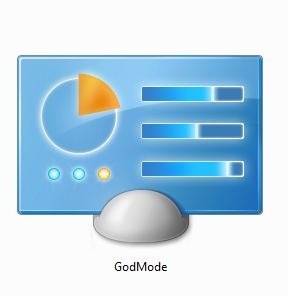
1. Right-Click your desktop and select New Folder
2. Rename the folder to the following entry :
GodMode.{ed7ba470-8e54-465e-825c-99712043e01c}
*The folder icon will change to this icon and you can now access GodMode
There you go!
TechWiz
Disabling Windows Defender and Firewall
 A feature in Windows 7 is the implementation of Windows Defender, which can become a hassle if you already have a decent anti-virus to handle all your virus and spyware needs. This significantly slows down your computer by utilizes many of your system's resources to power on Windows Defender.
Windows Firewall, on the other hand, has never been much of use for me due to the the many anti-viruses out there that feature a firewall in their software. We recommend disabling these features to improve your system response time and your online gaming experience (Firewall interferes with the servers you use to connect to when you're playing online). This tweak is significant for gamers and normal PC users.
*If you want more info on anti-viruses and which one to choose, check this post-->CLICK ME
Disable Windows Firewall
1. Click Start, Control Panel
2. In System and Security, click on Windows Firewall
3. On the left-hand side, hit Turn Windows Firewall On or Off
4. For both Private and Public sub-menus, check Turn Off Windows Firewall
Disable the firewall service (not recommended for beginners):
1. Click Start, Run, type Services.msc
2. In the list, scroll down and look for Windows Firewall
3. Double-click it, hit Stop to stop the service and in startup type, hit Disabled
Disable Windows Defender
1. Open up Windows Defender by clicking Start and by typing Windows Defender in the Search Box
2. Once inside the program, hit Tools
3. Under Settings, click Options
4. Click on the Administrator tab and uncheck "Use This Program"
Disable the windows defender service (not recommended for beginners):
1. Click Start, Run and type Services.msc
2. In the list, find Windows Defender
3. Double-click it, hit Stop and in the startup type, hit Disabled
There you go, another tweak, a faster PC!
TechWiz
Disable Low Disk Space Notification
Another registry tweak here showing you how to disable low disk space monitoring which notifies the user when their disk space is too low and can get pretty tiresome after seeing it pop-up many times. It also utilizes a lot of system's resources and, therefore, is not needed on your PC. Here's what to do:
1. Click Start, Run, then type Regedit
2. Navigate to the following line:
"HKEY_CURRENT_USER\Software\Microsoft\Windows\CurrentVersion\Policies\Explorer"
3. On the right-hand side, look for the following entries:
- NoLowDiskSpaceChecks = Set the value data to 1
- NoResolveSearch = Set the value data to 1
- NoInternetOpenWith = Set the value data to 1
- NoResolveTrack = Set the value data to 1
Cheers!
GaMeR
Faster Mouse Hover Time
This is a quick tip showing you guys how to speed up your mouse's hover time by simply decreasing it using the registry. Mouse hover time is the amount of time it takes to display the window ,you are currently viewing, in the taskbar. Here's how to speed it up:
1. Click Start, Run and type Regedit
2. Navigate to the following entry: HKEY_CURRENT_USER\Control Panel\Mouse
3. Look for the value on the right-hand side called MouseHoverTime
4. Double-click it and change the value data from 400 (default) to about 10
5. Close Regedit and restart your computer for changes to take affect
Cheers!
TechWiz
Manually Delete the Temp Folder
Temp files are files that programs backup when a program crashes, or has to keep some info about it which drastically slows down your PC by overloading these entries into the folder. It is recommended to delete these entries manually rather than having a program delete them for you. Here's how to do so:
1. Click Start, Run
2. Type %temp%
3. Delete whatever folders that pop-up
*It is also recommended to do this at least once daily to sustain performance
There you go
TechWiz
Disable Windows 7 Gadgets to Free Up Memory
Windows 7 uses customizable gadgets or widgets to make your PC experience even more impressive but it takes up quite a lot off the system's resources. If you do not use Windows gadgets and want to disable them to improve your PC's performance, follow these steps:
1. Click Start, Control Panel, Programs
2. Under Programs and Features, click on Turn Windows Features On or Off
3. In the list, uncheck Windows Gadget Platform
This will permanently disable the gadgets, but you have to restart your PC in order for the changes to affect.
Hope this helps!
TechWiz
Disable Windows Hibernation to Boost Performance
Hibernation can be a pretty useful tool at times but can take up a lot of space. When Windows hibernates and is restarted, it reloads the content of memory and is restored to the state it was in when hibernation was used. Basically, it is a tool used mostly for people who don't like waiting a long time for their computer to boot, but it becomes unnecessary once you've read "How to Speed Up Windows Boot Time" from our site. Here's how to disable Windows Hibernation:
1. Click Start, Run and type CMD
2. In cmd, type this without the cotations: "powercfg -h off"
3. Exit CMD and restart your computer.
This saves a lot of energy and boosts your computer's performance.
Cheers!
TechWiz
Fiz Buzzing or Static Noises In Videos, Games and Music
I recently discovered this while playing a PC game that demanded high quality sound. Turns out that my sound format (in Hz) was higher than it was supposed to. After changing it to a lower format, it helped and didn't notice a difference in the sound quality, other than the fact that they're was no more buzzing. Here's how to fix it:
Win7 and Vista Only
1. Click Start, Control Panel, Hardware and Sound
2. Click Sound and in the Playback tab, Right-Click your audio device and hit Properties
3. In the Advanced tab, select a lower sound quality in the Default Format section (Recommend 24-bit 48000 Hz or 44100 Hz)
There you go!
TechWiz
Disable Hardware Acceleration (Improve Video Playback)
Many PC users have problems with choppy video playback due to their graphic's card's performance. Here's a quick tip to improve video playback:
Win7 and Vista Only
1. Click on Start, Control Panel, Appearance and Personalization, Display
2. On the left side, click on Change Display Settings
3. Click on Advanced Settings
4. In the menu, click on the Troubleshoot Tab, and then Change Settings
5. Slide the hardware acceleration bar to None
*If "Change Settings" is grayed out, here's an alternate tip:
1. Go to Windows Media Player
2. Once inside, click on Organize from the top menu and then Options
3. Click on the Performance Tab and Uncheck "Turn On DirectX Video Acceleration"
Hope this helps!
TechWiz
Completely Disable Internet Explorer in Windows 7
Internet Explorer is probably the most known browser in the world, generally because it comes packaged with every Windows OS. These past 2 years have been very crucial to IE due to its poor interface ans slow speeds, having many users switch to more comprehensive browser such as Firefox or Google Chrome. One of the new features in Windows 7 is to disable Internet Explorer from your PC. Here's how to do so:
1. Open up Start, Control Panel, Programs
2. In Programs, under Programs and Features, click on Turn Windows Features On or Off
3. In the list, uncheck Internet Explorer
That's it!
Cheers!
TechWiz
Disable UAC On Windows 7
UAC is one of the most annoying features in windows. It aims to improve the security of Windows by limiting programs to standard user privileges. In this way, only applications trusted by the user may receive administrative privileges, but who really needs this crap?
This is how to disable it:
1. Click Start , search UAC and click on Change User Account Control Settings OR you can simply go to Control Panel and go to User Accounts and click on Change User Account Control Settings
2. Move the slider all the way down to disable it completely.
That's all!
SmartGuy
Add "Run" In Start Menu
- Right-Click your taskbar and go to Properties
- Click on the Start Menu tab and click Customize
- Scroll down and check the "Run Command" box.
- Click Ok and Apply
- Look at your start menu, if you did everything correctly, you should see a "Run" button on the right side


